
Tuesday, 2 April 2013
Becoming An Email Marketer
Labels:
advanced features
,
Best Practice
,
email marketing
,
Email Tips
,
free templates
,
Reports and Statistics
,
subscription form
,
White Paper
Email marketing can seem like a big task to undertake but by using an Email Service Provider such as ourselves we take a load off your shoulders. We have outlined the basics that you should be aware of when you first start:
To download it simply click here or click on the image below:

Read More
- Use a Template – We provide over 400 templates which you can use by adding your own text and images into them. The reason we suggest you use a template is because all email clients and devices have their own way to interpret emails. By using a template you can be confident that it will display correctly regardless of the email client or device your subscribers are using.
- Clear Calls To Action – Display clear calls-to-action within your emails, if you want your subscribers to click on a link/image or share your email then make it obvious to them.
- Advanced Features - We provide numerous advanced features which can make email marketing a breeze. If you are not fully aware of them then join our live webinars so you know what features you should be using.
- Provide An Option To Subscribe – It's important to give all recipients an option to sign up to receive your emails as your subscribers might share your email with friends or on social network sites. We provide a subscription form which can be added onto your website or Facebook, alternatively you can add a subscribe option within the footer of the emails you are sending out.
- Use Reports & Statistics – We provide very detailed reports & statistics which allow you to analyse your campaigns. Within the reports & statistics you can see when your subscribers are taking action within your emails to determine the best time to send. You can also create new mailing lists of those that are taking action with your emails such as if they open, click a link or even share your email.
To download it simply click here or click on the image below:

Monday, 1 April 2013
Create Your Newsletter
Labels:
drag and drop editor
,
editing newsletter
,
email template
Get
started creating stunning email
newsletters with GraphicMail. We have tons of pre-designed email templates to
choose from, and you can upload your own layout to design a custom look. We
make it easy to add personalization to your email messages with merge tags.

Read More
Creating a
newsletter is as easy as 1-2-3!
1. Create a
newsletter
2. Add
content & edit
3. Prep for
sending
Step 1:
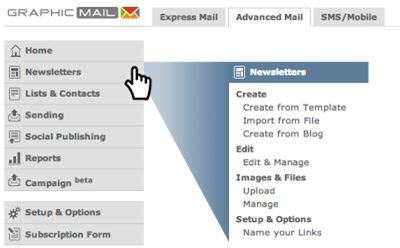
Create a fresh newsletter
After
logging into your account, start by clicking Newsletters in the left navigation
menu and then selecting one of the three Create options:
Newsletters > Create from Template
Whatever the
occasion, we have a template for it! Check out our template categories for
stylish ready-made designs to launch your campaign. Just give your template a
name to get started.
Newsletters
> Import from File
Upload your
own design to our newsletter and begin adding content right away, or you can
edit your design further within the editor. Upload your word, text, or HTML
files, or link to the appropriate URL.
Newsletters
> Upload from Blog
Click
‘create new’ to fetch the design style from a blog or any RSS feed and
replicate the same style in a ready-to-send email template. Just input your
feed's URL and our design editor will do the rest.
Step 2: Add
content to your newsletter
Give the
newsletter editor a spin by adding content to your message or editing various
design aspects. For step by step tips on how to edit and personalise
newsletters, please refer to the tutorial video guides in the help center or
consider taking part in one of our free How-to-get-started webinars.
GM TIP #1:
Keep your designs and layout simple. They are easier to send, open, and read
for your subscribers.
GM TIP #2:
Maintain a healthy balance of text versus images in your newsletters. Keep in
mind though that your images might not always render perfectly for all email
clients, so it is important to preview your emails on popular email platforms.

Step 3: Prep
for sending
GraphicMail
offers several pre-send check tools to ensure everything is in order prior to
sending. Please visit the following introductory guides for checking your spam
score, previewing your message, and setting up A/B split tests.
Thursday, 28 March 2013
We Are Away For Easter...
We would like to notify you that the live chat and telephone support will be unavailable over the Easter break from Friday 29th March - Monday 1st April.
Although the live chat and telephone support will be closed over this period our support team will still be checking emails so if you do experience any issues or you require any assistance over this period that is not covered by our help center's online tutorials and help files; then please contact us at support@graphicmail.co.uk and we will endeavour to get back to you within 24 hours.
We will return as normal on Tuesday 2nd April at 9am however, until then you may want to use the support materials below:
• Download our interactive manual
• View our online video tutorials
• Search through our Help Centre
• View our previous training webinars
• Email us
We hope you have a well-deserved break and a Happy Easter!
Read More
Although the live chat and telephone support will be closed over this period our support team will still be checking emails so if you do experience any issues or you require any assistance over this period that is not covered by our help center's online tutorials and help files; then please contact us at support@graphicmail.co.uk and we will endeavour to get back to you within 24 hours.
We will return as normal on Tuesday 2nd April at 9am however, until then you may want to use the support materials below:
• Download our interactive manual
• View our online video tutorials
• Search through our Help Centre
• View our previous training webinars
• Email us
We hope you have a well-deserved break and a Happy Easter!
Monday, 25 March 2013
Free Easter Templates
Labels:
Best Practice
,
Easter
,
Email Design
,
Embellishments
,
Inbox Preview
,
Reports and Statistics
,
segmentation
,
Smart Elements
We know holidays can be a hectic time so we have made it as easy as possible for you to create your Easter campaign. We have 6 free templates for you to choose from as shown below:
 Choosing a template is a great start but to help you further we have listed 5 easy
steps for you to follow to make sure you are able to achieve what you want from your
campaign:
Read More
- Who is your target audience? Is it specific, if so then use the data you have from your subscribers to segment your mailing list so you only send to your targeted audience, this can be done using segmentation.
- What is the aim for your email? Is it to inform the users of a new feature, product or a special offer? Whatever your aim is make sure it is clearly visible within the content. It is best to place the most important content at the top of your email as that will be the first thing your recipients see.
- Make good use of images - Images are a great way to get your point across in an attractive manner. We offer hundreds of free images within the Smart Elements and Embellishment section so why not check them out.
- Test your email - Testing your email cannot be understated. The email you are sending out is a representation of your company so if it doesn't look very good in a particular email client then a recipient using that email client will not think very highly of your company. Don't worry though as we have the cure, use our Inbox Preview tool as that will show you exactly how your email will look in over 14 different email clients and best of all it is free to use for all paying accounts.
- Sending at the right time - When sending your email it is important to make sure it isn't going to land in the heap of other emails your recipients may have. To prevent that from happening, check your Reports & Statistics for previous sends to see what time your recipients take action within them as that will likely be the best time to send.
Monday, 18 March 2013
Increase Your Click-Through Rate
Labels:
advanced features
,
click through rate
,
design
,
Email Design
,
email marketing
,
open rate
,
segmentation
Having your email opened is only half the battle, the next half is to get them to take action within it. We have displayed some simple tips that can help you achieve that:
We allow you to send up to 50 free test sends a day so you can see firsthand how your subject line and email will be viewed in different email clients. We have also listed some other advanced features you should be using:
If you have any additional advice then we would love to hear it, just leave a comment below.
Read More
- Email Copy – Is the content in the email suitable? Remember who your target audience is. You may even want to segment your mailing list which will allow you to send to your ideal target audience.
- Logo – Is your company logo clearly visible? It is always best to make sure your company logo is presented at the top section of the email as it immediately helps the recipient to recognise the email has been sent from you. Again don’t forget to use Alt text as most recipients will have images turned off as default until they have been downloaded.
- Calls to Action – Make sure your calls to actions are clear so your recipients know exactly what you would like them to do. Would you like them to click on a link to your website? Would you like them to share your newsletter or add it to Facebook? Make it obvious what you want them to do and how they can do it.
- Focal Point – The important content/images should be placed at the top of your email as that section will be seen first. If you need something extra to attract the recipient to a specific section then an animated Gif can do the trick. They are easy to make (with the correct software) and can make that focal point just that bit special. (Please note: An animated gif will only rotate in web based email clients. Due to this email clients such as Outlook will only display the first frame so you will need to make sure that first frame is still noteworthy).
- Go Social – Everything is going social so why not join in? Add buttons into your design to allow users to follow you on Twitter, join you on Facebook or even pin images onto Pinterest.
We allow you to send up to 50 free test sends a day so you can see firsthand how your subject line and email will be viewed in different email clients. We have also listed some other advanced features you should be using:
- Inbox Previews – This feature will show you how your email will be viewed in over 14 different email clients. At just a click of a button you can see the results saving you a lot of time and effort.
- Testing Your Spam Score – This feature will help you to make sure your email lands in the inbox rather than the spam folder. It will check the spam score rating of your email, from email address and subject line providing you with a description of how to lower it if it’s high.
- A/B Testing – This feature will allow you to test different emails or subject lines to see which will gain the best open or click through rate. When using this feature it will compare the emails or subject lines sent, it will then send the email or subject line that gained the best open or click through rate to the rest of your mailing list.
- Segmentation - This feature allows you to separate your mailing list into smaller, more targeted groups. You can use the data you have obtained from your subscribers to make sure your emails are sent to those that will appreciate it most. By doing this the emails will be more relevant to those that receive it helping you achieve a better open and click through rate.
If you have any additional advice then we would love to hear it, just leave a comment below.
Thursday, 14 March 2013
Are You Using Pinterest In Your Emails?
Labels:
Audience
,
Email Design
,
Marketing
,
Pinterest
,
Social Marketing
,
targeting
Pinterest allows anyone to take an image they like and post it on what they call boards. This then allows anyone to view that image and if they like it they can re-pin it onto their own board, so as you can imagine the audience your images could be reaching is endless. As you can expect this has been a huge hit for retailers as they can place their promotions on Pinterest and increase the product awareness and sales.
Now, you may be thinking that is great but how can I incorporate it into email marketing?
Well that bit is easier than you might think, we have explained how you can easily add pin it buttons or links in your email to have your products pinned.
The code used to pin products is displayed below:
Using the code above you can add your own links in:
[1] In this section you need to add the URL that points to where the image has been taken from. This will allow the users that view your image on Pinterest to go to that page and find out more, such as you may want to add a page to purchase the product being displayed.
[2] Within this section you will need to insert the URL of the image you would like to pin.
[3] Within the third section you can add a description of what the image is.
A working example of the code ready to go in an email is shown below:
An example of this is shown below:


Wednesday, 6 March 2013
HubSpot - Improve Email Clickthrough Rate by 583%
Labels:
Best Practice
,
blog
,
case study
,
click through rate
,
email marketing
,
tips
Let's face it: We
all get a deluge of email every day. And as marketers, there are lots of
ways we try to increase the response rates to the emails we send. The key
metric for email
marketing is usually clickthrough rate (CTR), not
open rate, and for our industry, the average email clickthrough rate
is about 2.4%. Here are two things HubSpot did recently that helped them to totally crush those industry benchmarks and get an email CTR of 16.4%, which is
583% higher than average.
Step 1: Use Inbound Marketing and Segmentation to
Improve Contact List Quality
The first thing you
need to do is stop
spamming people. This may sound obvious, but list quality is the key
to high email marketing engagement rates, and downloading names from Data.com
or using a "targeted list researcher" to build a list of names is not
going to drive engagement. By building a permission-centric, opt-in database of
contacts using inbound marketing, you can increase your CTR for the average
email you send by quite a lot. The logic behind this is simple: People who want
to receive your email are much more likely to love it and click on it than
people who have never heard of you.
Second, by not
emailing the same thing to everyone on your list, you can increase the
relevance of each email you send, which also increases engagement. At HubSpot,
we went from segmenting our contact database into 3-4 parts and sending about
10-20 different emails per month to sending about 200 different emails per
month to much smaller, more segmented lists, including triggered emails sent
to segments of 1.
So what has this
permission-based, extremely segmented
email approach done for us in terms of email engagement? Rather
than the industry benchmark CTR of 2.4%, if you look at the average of all the
emails we've sent at HubSpot over the past 9 months, our CTR is 6.4%,
about 166% higher than the benchmark. Not too shabby!
Step 2: Be Remarkable and Personal With Video and
Humor
While beating
industry benchmarks is great, the marketing team at HubSpot doesn't just like
to win; we also like to take our goals and totally dominate them. So here's
what we did: We took a segment of our contacts database that
was our best fit leads who had opted in to hearing from us, but who had been
marked as "unable to contact" in our CRM system (Salesforce.com)
after a sales rep had reached out to them a few times with no response. Because
our CRM is
integrated with our marketing software, we can set up a workflow that
triggers an automated email whenever a sales rep changes a lead's status to
"unable to contact."
But rather than
send a dry, boring email, we decided to spice it up and try hard to re-engage
these people with humor and visual content. So we created a video that tried to
make fun of the situation, empathize with the marketers we sell to (who often
dislike sales), and bring a smile to their faces -- and perhaps even get them
to love our marketing a little bit. Here's the email we started sending them,
with the goal of getting people to visit this page,
and then either contact us or watch a demo video:

The Results
This email has a
CTR of 16.4%, which is 583% higher than the 2.4% industry benchmark. And because the email and video are so
unique, lovable, and engaging, people actually share it in social media and
reply with comments like "Loved it!" and "Hilarious email"
and Love your marketing!" So not only are we plugging a leak in our funnel
and attracting more revenue, but we're also building love for our company and
our marketing.
Subscribe to:
Posts
(
Atom
)
Follow Us


Popular Posts
-
 Have you noticed our new dashboard yet? If not then just log into your account and click on the " Home " tab. Alternatively if you...
-
 Take an exclusive peek at our New Mobile Editor which you will have access to very shortly! Soon you will be able to create a free mobile ...
-
GraphicMail is currently in the last phase of completing the integration of a new email newsletter editor that will let you easily create ...