
Showing posts with label advanced features. Show all posts
Showing posts with label advanced features. Show all posts
Monday, 9 November 2015
The Road To Successful Email Marketing
Labels:
advanced features
,
tips

Within each GraphicMail account you are presented with a wide range of features all with their own merits, however there are 5 main features that you should be using to make sure you're getting the most out of your email campaigns.
These top 5 features will help to ensure your email looks great, is aimed at the right target audience, lands in the inbox, achieves the best results and is helping to send the right email at the right time.
#1 Inbox Preview
Although we provide over 80 free responsive templates which have been tested across all email clients, it's still best to use our Inbox Preview tool to make sure the email still displays as expected after you've made your own changes to it. Our new and improved Inbox Preview tool takes less than 30 seconds to complete and shows you how your email displays in over 30 email clients display including Android mobiles & iPhones.#2 Segmentation
The segmentation tool allows you to use your subscriber data to segment your mailing list(s) into targeted groups. By doing this you will increase your chance of engagement as the emails you will be sending will become more relevant to your subscribers. You can and should also be using this as a way to focus your email content and design, allowing you to be very specific in what targeted emails you send to your subscribers. If you don't have any subscriber data to use for this tool then why not simply ask your subscribers to share more with you. Although a form is a good place to start, another great way to request information from your subscribers is to do so visually as shown in this, example from Sony.#3 Spam Score Checker
Once you've created your email and have the subscribers to send to, it's important to check the spam score rating of your newsletter to make sure it's going to land in the inbox as expected. Our spam score checker will conduct numerous tests giving you advice on how to increase your chances of the email landing in the inbox.#4 A/B Testing
Rather than sending to your entire list, why not try different subject lines to see which one gets the best open rate? By using the A/B testing tool, you can test against numerous subjectlines or even email designs to see which one achieves the best results. If you're thinking of trying different subjectlines then you may want to try adding personalisation, limit the characters being used (to cater for mobiles), add urgency, add facts or just have some fun with them.#5 Auto-responders
We all know that feeling when your to-do list keeps getting longer, so to make sure you don't forget about your email campaign you can use our auto-responders to help. You can have emails automatically sent for you such as thank you emails sent immediately after people signup to your mailing list. You can have follow up emails sent when subscribers show an interest in a product or you can simply schedule an email to send at a specific date & time.Want to start using the advanced features? Start a trial or simply login into your account.

Tuesday, 21 July 2015
The Ultimate Guide To A/B Testing (Series 2 of 5)
Labels:
a/b testing
,
advanced features
,
tips
Have you ever been puzzled as to why one of your emails received a higher open rate than expected? Let me start off by saying you're not the only one. Most of the time we will consider a number of causes; was the subject line more enticing? Maybe it was the time that it was sent out? Or was it the preview pane in Outlook that helped to entice subscribers?
All of these are valid reasons so you may think that all you can do is look at the reports and speculate the reasons but that's not true. A/B testing can help you to pinpoint what works and more importantly what doesn't.
Within GraphicMail you can test up to eight subject lines or newsletters in a single A/B test, and it is as simple as deciding which newsletters or subject lines you wish to test, and then selecting which percentage of your mailing list you would like the test to be performed on.
 Testing two subject lines against 10% of the mailing list.
After the A/B test has is complete, the ‘winning’ subject line or email design will be sent out to the remaining percentage of your list, it’s that simple!
This isn’t something that you should only do once either, A/B testing should be an integral part of your marketing strategy as it will allow you to pick up on subscriber trends over time, improve the interaction with your emails and make sure that all of your hard work isn’t going to waste.
Subject line
1. Try asking a question in the subject line.
2. Add personalisation.
3. Shorten the subject line with keywords at the front.

Email design
1. Change content.
2. Change the email design.
3. Change the email layout.
4. Change the use of buttons and hyperlinked text.
5. Change the pre-header/email snippet text
 Another well deserved mention for A/B testing is to test your email pre-header (also known as snippet text). This will display in most email clients and give you the ability to have text displayed next to your subject line which can be used to entice your subscriber to open it.
 Pre-header text is shown as grey font in the screenshot above, "send up to..."
Why not start a free no-obligation trial at; graphicmail.co.uk/get-your-free-trial, and try out A/B testing for yourself?
Did you miss series one our 'Email Marketing Overview'? view it here.
Read More
All of these are valid reasons so you may think that all you can do is look at the reports and speculate the reasons but that's not true. A/B testing can help you to pinpoint what works and more importantly what doesn't.
What is A/B Testing and why is it useful?
A/B testing allows you to experiment with different subject lines, or even email designs, to increase the open rate and click-through rate of your email campaigns with a simple click of a button.Within GraphicMail you can test up to eight subject lines or newsletters in a single A/B test, and it is as simple as deciding which newsletters or subject lines you wish to test, and then selecting which percentage of your mailing list you would like the test to be performed on.
After the A/B test has is complete, the ‘winning’ subject line or email design will be sent out to the remaining percentage of your list, it’s that simple!
This isn’t something that you should only do once either, A/B testing should be an integral part of your marketing strategy as it will allow you to pick up on subscriber trends over time, improve the interaction with your emails and make sure that all of your hard work isn’t going to waste.
Examples of what you can test
Okay so now you know all about A/B testing and how it can be a fundamental part of your email marketing, here's some ideas of what you can test within the subject line and email design.Subject line
1. Try asking a question in the subject line.
2. Add personalisation.
3. Shorten the subject line with keywords at the front.
Email design
1. Change content.
2. Change the email design.
3. Change the email layout.
4. Change the use of buttons and hyperlinked text.
5. Change the pre-header/email snippet text
Why not start a free no-obligation trial at; graphicmail.co.uk/get-your-free-trial, and try out A/B testing for yourself?
Did you miss series one our 'Email Marketing Overview'? view it here.
Tuesday, 26 May 2015
Advanced Features That REALLY Help
Labels:
advanced features
,
Help
,
infographic
Over the years GraphicMail has changed a lot! Even looking back as early as last year, we can see the interface has changed for the better as it's now more user-friendly & we've also added new advanced features.
Quite often our support team will get asked about what advanced features are available as users don't always have the time to try them when they're first launched. Although we share information about them within our Help Center, Blog, Facebook & Twitter it's easy to forget about them if you aren't already using them to help improve your email campaign.


If you'd like to know more about how the features can help; then our recent blog titled, 'Top 10 Tips To Get Your Email Opened' is a must as that explains what features can help you achieve a better open rate.
Of course if you have any questions regarding any of the advanced features then you can contact our support team via email, livechat or call on 0191 5004 114.
If you don't have an account but would like to give some of the above features a try, then you can start a free 30 day trial. The trial is no obligation (so no payment is required), it gives you full access to all features & allows you to send to up to 500 contacts 10 times during the trial period.
Read More
Quite often our support team will get asked about what advanced features are available as users don't always have the time to try them when they're first launched. Although we share information about them within our Help Center, Blog, Facebook & Twitter it's easy to forget about them if you aren't already using them to help improve your email campaign.
Advanced Features You Should Be Using
To help make it clear what advanced features you have access to and how they work, we've broken it down for you within the image below:
Locating The Advanced Features
To help give you a better understanding of where the advanced features are located within your account, we've created a simple diagram below:
If you'd like to know more about how the features can help; then our recent blog titled, 'Top 10 Tips To Get Your Email Opened' is a must as that explains what features can help you achieve a better open rate.
Of course if you have any questions regarding any of the advanced features then you can contact our support team via email, livechat or call on 0191 5004 114.
Using The Advanced Features
If you've already have an account with us then what are you waiting for? Login and give them a try.If you don't have an account but would like to give some of the above features a try, then you can start a free 30 day trial. The trial is no obligation (so no payment is required), it gives you full access to all features & allows you to send to up to 500 contacts 10 times during the trial period.
Monday, 19 January 2015
New Image Editor Now Available
Labels:
advanced features
,
editing
,
Image Editor
,
images
We'd like to introduce our new Image Editor, the first of many improvements!

Throughout 2014 we introduced numerous features to enhance the GraphicMail system and this year is going to be no different. We are going to be even more focused on providing you with the usual high standard of service, low pricing while always making it easier for you to create & send email campaigns.
The start of this year comes with the introduction of our new Image Editor which is available within our latest editor named, Email Creator. This new editor comes as a great enhancement to our latest editor so if you haven't already upgraded to our new editor then you are seriously missing out.
2) Crop Images - You can crop your images to pre-set sizes, custom sizes or simply use the controls within the eidtor to manually crop them yourself.
3) Enhance Your Images - You can now enhance the quality of your image by using our High Definition or our sharpness tool.
4) Add Text To Images - Are your images missing something? You can now add text to your images to make them stand out even more.
These are just 4 out of 19 tools that the Image Editor has to offer.
Once you're using the latest editor take a look at the user manual below as that explains how all of the Image Editor tools work so you can easily begin editing your images:
Read More
Throughout 2014 we introduced numerous features to enhance the GraphicMail system and this year is going to be no different. We are going to be even more focused on providing you with the usual high standard of service, low pricing while always making it easier for you to create & send email campaigns.
The start of this year comes with the introduction of our new Image Editor which is available within our latest editor named, Email Creator. This new editor comes as a great enhancement to our latest editor so if you haven't already upgraded to our new editor then you are seriously missing out.
What's so good about it?
1) Resize Images - Within the image editor you can easily resize your images so you no longer need to exit GraphicMail to resize them.2) Crop Images - You can crop your images to pre-set sizes, custom sizes or simply use the controls within the eidtor to manually crop them yourself.
3) Enhance Your Images - You can now enhance the quality of your image by using our High Definition or our sharpness tool.
4) Add Text To Images - Are your images missing something? You can now add text to your images to make them stand out even more.
These are just 4 out of 19 tools that the Image Editor has to offer.
Want to try it for yourself?
To access the new Image Editor then you will need to be using our latest editor. If you haven't already upgraded to our new editor then you will see an option at the top of the 'Home' page within your GraphicMail account which will allow you to Demo the new Editor or simply Upgrade to it free of charge.Once you're using the latest editor take a look at the user manual below as that explains how all of the Image Editor tools work so you can easily begin editing your images:
Thursday, 30 October 2014
It's Time To Get Your Holiday Emails Ready
Labels:
a/b testing
,
advanced features
,
autoresponders
,
christmas
,
halloween
,
holiday
,
sales
,
testing
The season of opportunity is approaching so now is the perfect time to setup your holiday emails to help increase sales & traffic to your website. Although Christmas takes the top spot, there are also some other holidays that you should consider when sending emails:
Halloween - Friday 31 October
Thanksgiving - Thursday 27th November
Black Friday - Friday 28th November
Cyber Monday - Monday 1st December
As there are lots of emails for you to create, we have put together a bundle of resources to help you.
We have created a Halloween Toolkit which includes a free responsive template and Halloween images. We also have over 80 other free responsive templates that you can use which include themed templates for Black Friday, Christmas and Thanks Giving:

Once you have chosen a template to use you can easily include your own images, text and links into it. The next step is to then test your email because although our templates are created with email clients & mobiles in mind some images, links and even font may not work as expected.
If you'd like to try our free templates & advanced features then you can signup for a free 30 day trial by clicking here.
For those that already have a paying account then you can simply go to "Advanced Mail" (tab at the top), you will then see all of the testing features as well as the A/B testing and auto-responder tools within the "Send" tab (presented on the left) . Our segmentation tool can be found within the "Lists & Contacts" (tab on the left) >> within the 'Manage' section.
If you have any questions then feel free to contact us via email on our Help Center or on Live Chat as our support team are always happy to help.
Read More
Halloween - Friday 31 October
Thanksgiving - Thursday 27th November
Black Friday - Friday 28th November
Cyber Monday - Monday 1st December
As there are lots of emails for you to create, we have put together a bundle of resources to help you.
We have created a Halloween Toolkit which includes a free responsive template and Halloween images. We also have over 80 other free responsive templates that you can use which include themed templates for Black Friday, Christmas and Thanks Giving:
Once you have chosen a template to use you can easily include your own images, text and links into it. The next step is to then test your email because although our templates are created with email clients & mobiles in mind some images, links and even font may not work as expected.
Testing Features:
Within the GraphicMail account we provide numerous testing features that will help to make sure your emails display as intended and reach the inbox.| • | Inbox Preview - This tool is free to use for paying accounts and will show you exactly how your email will look in 14 different email clients including an iPhone so you can immediately identify issues. |
| • | Send a Test - This option allows you to send up to 50 free test sends a day. As the email is sent to your own inbox it's vital that you test all links within your email to make sure they work correctly. |
| • | Spam Score Checker - This tool allows you to check the spam score rating of your email. It will check the subject line, email content and HTML code being used and provide you with a reason for specific scores to help you reduce them. |
Features To Increase Opens & Clicks:
Once your email has been tested and you are happy to send, there is no certainty that the recipients will open it. With this in mind, it's time to use some more of the advanced features you have access to:| • | A/B Testing - While using this feature you can test different subject lines or even email designs such as colours, layouts or calls-to-action such as using text hyperlinks, buttons or images. The tests will be sent to a percentage of your mailing list and then the winning subject line or email design can then be sent to the remainder of your mailing list. |
| • | Auto-responder - You can use our schedule auto-responder to have an email automatically sent at a specific date & time. This will help to free up your time to concentrate on other tasks. |
| • | Segmentation - Rather than sending your email to your full mailing list, if you have information about your subscribers then you can use it to target specific groups. You can even use very basic information such as gender, age or location as that will then help you to target your subject lines & email designs to that group. |
For those that already have a paying account then you can simply go to "Advanced Mail" (tab at the top), you will then see all of the testing features as well as the A/B testing and auto-responder tools within the "Send" tab (presented on the left) . Our segmentation tool can be found within the "Lists & Contacts" (tab on the left) >> within the 'Manage' section.
If you have any questions then feel free to contact us via email on our Help Center or on Live Chat as our support team are always happy to help.
Monday, 11 August 2014
Let auto-responders power your email campaign
Labels:
advanced features
,
autoresponders
,
email marketing tips
,
sales
,
tips
Auto-responders have the ability to automate your email campaign which in return will help you save time, target subscribers and drive sales from those taking action in your emails. We have numerous auto-responders that can help you to continue the communication with your subscribers.
A lot of our users will schedule emails to be sent via our auto-responders as that allows them to set an email to send at a particular date and time. However our powerful auto-responders can do a lot more to help your email campaign succeed. To make sure you don't miss out, our auto-responders are explained below:
✓ Subscribe - When a user subscribes to your mailing list, you can have an email automatically sent to that person immediately or it can be delayed if you prefer. Within this email I suggest that you thank the user for subscribing, provide them with some information about what they can expect from your email campaigns and award the new subscriber with the advertised incentive such as discount offer or similar. The final section you should include in your subscribe email is to ask the recipient to add your from email address as a trusted sender. By doing this, it will help your future emails to land in the inbox as the recipient will be telling their email client that they expect emails from you and that they are trusted.
✓ Schedule - This auto-responder will allow you to schedule an email to be sent at a particular date and time so even if you are out of the office your email campaign can still be sent as intended. All you need to do is create the email, setup the auto-responder and sit back and relax as our system sends it out for you at the exact date and time you selected.
✓ Open - The open auto-responders can help you to continue the communication with your subscribers as it allows you to automatically send an email once a previous email has been opened. An example of proactively using this auto-responder is to use it to remind people of your offers such as if you have an offer running for a week. You may want to send the first email about your offer on a Monday and have the open auto-responder automatically send another email 2 days after the first email has been opened, that way the second email will remind the subscribers that the offer is going to end soon, pushing them to take action now.
✓ Click - This auto-responder allows you to take a more persuasive approach with those that are actually interested in your products. If a subscriber clicks on a link in your email to view more information about a particular product, you can use this auto-responder to have another email sent to that subscriber providing them with more information about the product. You can also include similar products and be a lot more persuasive as you know they are interested in that particular product so this is your chance to give them an incentive to actually purchase it.
✓ Anniversary - Our anniversary auto-responder allows you to send emails to your subscribers based on dates you have stored about them. For a garage those dates may relate to a car's M.O.T so you can have an email sent to the subscriber a few weeks before the M.O.T is due reminding them of this and providing an offer to them. For other companies it may be a subscription renewal, or simply the subscriber's birthday. If it is relating to a birthday you may want to have the email automatically sent a few weeks before so they have your products on their mind (as they can ask others to purchase them). Alternatively on or after their birthday you may want to email them advertising some of your more expensive products as they will likely have more money to spend.
✓ Unsubscribe - Although users may unsubscribe it doesn't mean you have lost them forever. If you don't have an unsubscribe auto-responder setup then you are missing an opportunity to tell the subscriber what action they have taken. Some people may click on the unsubscribe link without meaning to, so by using an unsubscribe auto-responder you can have an email sent immediately after they unsubscribe telling them they have unsubscribed, provide them with an option to sign back up and you can also give them an opportunity to follow you on social media instead as email may no longer be their preferred method of following you.
✓ RSVP - It is not best practice to add a form in your email as those using Outlook Desktop won't be able to submit the form meaning you won't get any feedback and your subscriber will have a bad experience with your email. A far better way of gathering information is to use our RSVP auto-responders as they allow you to ask a question and then obtain the answer from the recipient by them clicking on a particular link such as "Yes" or "No". When they click on one of the specific links it will then update some information within your dataset allowing that information to be used at a later stage such as if you would like to segment the mailing list so you can send to those that answered "Yes".
Hopefully this blog has shed some light on how auto-responders can be a very good asset to your email campaigns as they are powerful, automated and can drive sales for your company. If you would like some help setting up an auto-responder then please don't hesitate to contact our support team.
Read More
A lot of our users will schedule emails to be sent via our auto-responders as that allows them to set an email to send at a particular date and time. However our powerful auto-responders can do a lot more to help your email campaign succeed. To make sure you don't miss out, our auto-responders are explained below:
✓ Subscribe - When a user subscribes to your mailing list, you can have an email automatically sent to that person immediately or it can be delayed if you prefer. Within this email I suggest that you thank the user for subscribing, provide them with some information about what they can expect from your email campaigns and award the new subscriber with the advertised incentive such as discount offer or similar. The final section you should include in your subscribe email is to ask the recipient to add your from email address as a trusted sender. By doing this, it will help your future emails to land in the inbox as the recipient will be telling their email client that they expect emails from you and that they are trusted.
✓ Schedule - This auto-responder will allow you to schedule an email to be sent at a particular date and time so even if you are out of the office your email campaign can still be sent as intended. All you need to do is create the email, setup the auto-responder and sit back and relax as our system sends it out for you at the exact date and time you selected.
✓ Open - The open auto-responders can help you to continue the communication with your subscribers as it allows you to automatically send an email once a previous email has been opened. An example of proactively using this auto-responder is to use it to remind people of your offers such as if you have an offer running for a week. You may want to send the first email about your offer on a Monday and have the open auto-responder automatically send another email 2 days after the first email has been opened, that way the second email will remind the subscribers that the offer is going to end soon, pushing them to take action now.
✓ Click - This auto-responder allows you to take a more persuasive approach with those that are actually interested in your products. If a subscriber clicks on a link in your email to view more information about a particular product, you can use this auto-responder to have another email sent to that subscriber providing them with more information about the product. You can also include similar products and be a lot more persuasive as you know they are interested in that particular product so this is your chance to give them an incentive to actually purchase it.
✓ Anniversary - Our anniversary auto-responder allows you to send emails to your subscribers based on dates you have stored about them. For a garage those dates may relate to a car's M.O.T so you can have an email sent to the subscriber a few weeks before the M.O.T is due reminding them of this and providing an offer to them. For other companies it may be a subscription renewal, or simply the subscriber's birthday. If it is relating to a birthday you may want to have the email automatically sent a few weeks before so they have your products on their mind (as they can ask others to purchase them). Alternatively on or after their birthday you may want to email them advertising some of your more expensive products as they will likely have more money to spend.
✓ Unsubscribe - Although users may unsubscribe it doesn't mean you have lost them forever. If you don't have an unsubscribe auto-responder setup then you are missing an opportunity to tell the subscriber what action they have taken. Some people may click on the unsubscribe link without meaning to, so by using an unsubscribe auto-responder you can have an email sent immediately after they unsubscribe telling them they have unsubscribed, provide them with an option to sign back up and you can also give them an opportunity to follow you on social media instead as email may no longer be their preferred method of following you.
✓ RSVP - It is not best practice to add a form in your email as those using Outlook Desktop won't be able to submit the form meaning you won't get any feedback and your subscriber will have a bad experience with your email. A far better way of gathering information is to use our RSVP auto-responders as they allow you to ask a question and then obtain the answer from the recipient by them clicking on a particular link such as "Yes" or "No". When they click on one of the specific links it will then update some information within your dataset allowing that information to be used at a later stage such as if you would like to segment the mailing list so you can send to those that answered "Yes".
Hopefully this blog has shed some light on how auto-responders can be a very good asset to your email campaigns as they are powerful, automated and can drive sales for your company. If you would like some help setting up an auto-responder then please don't hesitate to contact our support team.
Monday, 9 June 2014
Go further with GraphicMail’s Advanced Features
Labels:
advanced features
,
free templates
,
GraphicMail
,
responsive emails
When you have a GraphicMail paying account which start from as low as £9.95 a month you will have a whole range of advanced features ranging
from list segmentation, ability to improve open & click-through rates, more
testing and sending features and extensive reports & statistics.
Our new Editor “Email Creator”, also now makes it even easier for you to create your email campaigns as we provide over 80 free responsive email templates which you can use as a base. As those email templates are responsive it means they look great regardless of the email client or device your subscribers are using. This will help to ensure your emails are received as intended and as it responds to the device being used it will make it as easy as possible for your message to be read.
As well as providing 80 free email templates we also give you the option to import an email template of your own. To help you do this we have made sure the process of uploading your own email template is as easy as possible. You can import a HTML template via a text or HTML file, via a URL or you can even import your images and HTML file in one go via a compressed zip file. We also allow you to import an email template using a Word document, however it is better to use one of our free HTML templates as the Word document might not display correctly as there are some limitations when converting it HTML.
Once the email has be imported or created using our free templates you will be ready to send. At this point you will see some additional options which many users forget about. If you click on Send (tab on the left) >> Send to Mailing list >> select the option “[+] Attach File or Images” >> You will then see you can tick the box to ‘Embed Images’.
By embedding images it will make sure your images within the email display immediately regardless of the recipients settings. With that in mind, if you are sending an email which is predominately images then you may want to embed the images to make sure it is immediately seen by the recipient. Of course, you can then use our Reports & Statistics to compare your results against your previous campaigns.
These are just some of the benefits of using GraphicMail, to find out the full list of Advanced Features then please click here. Alternatively, if you're new to GraphicMail then you can signup for a free 30 day trial and gain access to all of our responsive templates and advanced features by clicking here.
Read More
Our new Editor “Email Creator”, also now makes it even easier for you to create your email campaigns as we provide over 80 free responsive email templates which you can use as a base. As those email templates are responsive it means they look great regardless of the email client or device your subscribers are using. This will help to ensure your emails are received as intended and as it responds to the device being used it will make it as easy as possible for your message to be read.
As well as providing 80 free email templates we also give you the option to import an email template of your own. To help you do this we have made sure the process of uploading your own email template is as easy as possible. You can import a HTML template via a text or HTML file, via a URL or you can even import your images and HTML file in one go via a compressed zip file. We also allow you to import an email template using a Word document, however it is better to use one of our free HTML templates as the Word document might not display correctly as there are some limitations when converting it HTML.
Once the email has be imported or created using our free templates you will be ready to send. At this point you will see some additional options which many users forget about. If you click on Send (tab on the left) >> Send to Mailing list >> select the option “[+] Attach File or Images” >> You will then see you can tick the box to ‘Embed Images’.
By embedding images it will make sure your images within the email display immediately regardless of the recipients settings. With that in mind, if you are sending an email which is predominately images then you may want to embed the images to make sure it is immediately seen by the recipient. Of course, you can then use our Reports & Statistics to compare your results against your previous campaigns.
These are just some of the benefits of using GraphicMail, to find out the full list of Advanced Features then please click here. Alternatively, if you're new to GraphicMail then you can signup for a free 30 day trial and gain access to all of our responsive templates and advanced features by clicking here.
Friday, 28 February 2014
Module 1: DKIM & SPF Records
Labels:
advanced features
,
advanced mail
,
advice
,
deliverability
,
dkim
,
DNS
,
email delivery
,
email marketing
,
GraphicMail
,
help guides
,
inbox
,
ISP
,
junk
,
SPF
These types of abbreviations and acronyms are all well and good to tech-types and cyber geeks, but what do they really mean and will they be of any benefit to you, the user?
The answer simply is....YES!
Although these sound like jargon and ‘far too techie for me’ they are quite simple to implement and can give a great increase to your deliverability and open rates – potentially increasing your ROI1 (oops there we go again! But at least we’ve created a legend at the bottom to assist with these necessary Jargons)
The Sender ID, most commonly known as an SPF2 record, is a record that you can add to your DNS3 which will tell the receiving ISP4 that “xyz.com” can send emails on behalf of your domain. The SPF is supported by large ISP’s including Windows Live Mail and AOL5 among others and has been designed to prevent spam emails by detecting email spoofing, a common vulnerability, by verifying sender IP addresses6.
DKIM7 / Domain Keys send a public key along with every email we send out. That public key is matched with a private key stored on your domain which is then verified and confirms we can send emails on your behalf. Our DKIM record is also supported by large ISP’s such as Yahoo Mail, Gmail and many more email clients. Without these keys some emails may be wrongly identified as spam as this is a common trick used by spammers to have their emails read, by pretending to be someone they aren’t. Such as a group of people in Nigeria pretending to be Paypal to obtain your username and password.
That’s the end of the Jargon, now here’s the explanations ...
1ROI: Stands for Return On Investment
2SPF: Sender Policy Framework is an email validation system designed to prevent email spam by detecting email spoofing, a common vulnerability, by verifying sender IP addresses.
3DNS: Stands for the Domain Name System. The DNS records tell the internet where to send your internet traffic.
4ISP: Internet service provider is a company that offers internet access and related services to its clients.
5AOL: Stands for America Online, an internet service provider
6IP address: Internet Protocol is a unique string of numbers separated by full stops that identifies each computer using the Internet Protocol to communicate over a network.
7DKIM: Domain Keys Identified Mail defines a domain-level authentication framework for email using public-key cryptography and key server technology to permit verification of the source and contents of messages by either Mail Transfer Agents (MTAs) or Mail User Agents (MUAs)
SPAM: Irrelevant or unsolicited messages sent over the Internet, typically to large numbers of users, for the purposes of advertising, phishing, spreading malware, etc.
We can help you generate these keys which you will need to add to your DNS record. You also have the chance to generate them yourself and add them into your GraphicMail paying account. Using both of these features will help you to ensure successful delivery of your email, so you won’t need to worry about your emails landing in your recipient’s junk mail or not being received at all.
If you find these advanced features could be of a benefit to your email delivery, you can use the steps provided below to set them up.
Setting up your SPF record:
In the “Advanced Mail” section of your account, go to “Setup & Option” >> “Advanced Setting”
Expand the “SPF records / Sender ID” option >> Insert your email domain into the space provided and press “Generate SPF records”
Setting up your DKIM record:
In the “Advanced Mail” section of your account, go to “Setup & Option” >> “Advanced Setting”
If you are using our system to generate this for you, expand the option “DKIM/ Domain Keys” >> Insert your email domain and press “Generate DKIM record”
If you would like any further information on the DKIM & SPF record you can also view our Help Guide provided in all GraphicMail Accounts.
Read More
The answer simply is....YES!
Although these sound like jargon and ‘far too techie for me’ they are quite simple to implement and can give a great increase to your deliverability and open rates – potentially increasing your ROI1 (oops there we go again! But at least we’ve created a legend at the bottom to assist with these necessary Jargons)
The Sender ID, most commonly known as an SPF2 record, is a record that you can add to your DNS3 which will tell the receiving ISP4 that “xyz.com” can send emails on behalf of your domain. The SPF is supported by large ISP’s including Windows Live Mail and AOL5 among others and has been designed to prevent spam emails by detecting email spoofing, a common vulnerability, by verifying sender IP addresses6.
DKIM7 / Domain Keys send a public key along with every email we send out. That public key is matched with a private key stored on your domain which is then verified and confirms we can send emails on your behalf. Our DKIM record is also supported by large ISP’s such as Yahoo Mail, Gmail and many more email clients. Without these keys some emails may be wrongly identified as spam as this is a common trick used by spammers to have their emails read, by pretending to be someone they aren’t. Such as a group of people in Nigeria pretending to be Paypal to obtain your username and password.
That’s the end of the Jargon, now here’s the explanations ...
1ROI: Stands for Return On Investment
2SPF: Sender Policy Framework is an email validation system designed to prevent email spam by detecting email spoofing, a common vulnerability, by verifying sender IP addresses.
3DNS: Stands for the Domain Name System. The DNS records tell the internet where to send your internet traffic.
4ISP: Internet service provider is a company that offers internet access and related services to its clients.
5AOL: Stands for America Online, an internet service provider
6IP address: Internet Protocol is a unique string of numbers separated by full stops that identifies each computer using the Internet Protocol to communicate over a network.
7DKIM: Domain Keys Identified Mail defines a domain-level authentication framework for email using public-key cryptography and key server technology to permit verification of the source and contents of messages by either Mail Transfer Agents (MTAs) or Mail User Agents (MUAs)
SPAM: Irrelevant or unsolicited messages sent over the Internet, typically to large numbers of users, for the purposes of advertising, phishing, spreading malware, etc.
We can help you generate these keys which you will need to add to your DNS record. You also have the chance to generate them yourself and add them into your GraphicMail paying account. Using both of these features will help you to ensure successful delivery of your email, so you won’t need to worry about your emails landing in your recipient’s junk mail or not being received at all.
If you find these advanced features could be of a benefit to your email delivery, you can use the steps provided below to set them up.
Setting up your SPF record:
In the “Advanced Mail” section of your account, go to “Setup & Option” >> “Advanced Setting”
Expand the “SPF records / Sender ID” option >> Insert your email domain into the space provided and press “Generate SPF records”
Setting up your DKIM record:
In the “Advanced Mail” section of your account, go to “Setup & Option” >> “Advanced Setting”
If you are using our system to generate this for you, expand the option “DKIM/ Domain Keys” >> Insert your email domain and press “Generate DKIM record”
If you would like any further information on the DKIM & SPF record you can also view our Help Guide provided in all GraphicMail Accounts.
Tuesday, 25 February 2014
Inbox Preview: Making the perfect newsletter
Labels:
a/b testing
,
advanced features
,
advanced mail
,
advantages
,
autoresponders
,
click through rate
,
email clients
,
email marketing
,
GraphicMail
,
Inbox Preview
,
newsletter
,
segmentation
GraphicMail has a range of great features for you to get the most from your email marketing campaigns such as A/B Testing, Segmentation, Autoresponders among others. One of the most beneficial features we provide within the GraphicMail account is the Inbox Preview tool.
Our Inbox Preview tool allows you to see how your newsletter will look in over 14 different email clients. As a result of showing you this before sending, you can make all relevant changes to your email to ensure it looks as perfect as it can be within all inbox’s.
This feature is available to all current users and all new clients looking to progress in Email Marketing with a GraphicMail paying account.
The main advantages of using the Inbox Preview tool are:
• View your email in over 14 different email clients before sending.
• Make all necessary changes to your email.
• Using the inbox preview tool allows your email to be the best it can be
Using the inbox preview tool is really simple. You will only need to click Inbox preview located in the “Advanced Mail” section under “Send”. Once you have accessed the inbox preview tool you can then select the option “New Preview”, provide a name for your preview and wait for your email to populate within the different email clients as the picture below shows.

Ensuring your newsletters displays perfectly in all email clients can help you to improve your click through rate. By doing this, your brand will gain reputation and you will be able to grow your customer’s loyalty.
Read More
Our Inbox Preview tool allows you to see how your newsletter will look in over 14 different email clients. As a result of showing you this before sending, you can make all relevant changes to your email to ensure it looks as perfect as it can be within all inbox’s.
This feature is available to all current users and all new clients looking to progress in Email Marketing with a GraphicMail paying account.
The main advantages of using the Inbox Preview tool are:
• View your email in over 14 different email clients before sending.
• Make all necessary changes to your email.
• Using the inbox preview tool allows your email to be the best it can be
Using the inbox preview tool is really simple. You will only need to click Inbox preview located in the “Advanced Mail” section under “Send”. Once you have accessed the inbox preview tool you can then select the option “New Preview”, provide a name for your preview and wait for your email to populate within the different email clients as the picture below shows.
Ensuring your newsletters displays perfectly in all email clients can help you to improve your click through rate. By doing this, your brand will gain reputation and you will be able to grow your customer’s loyalty.
Friday, 21 February 2014
GraphicMail's Advanced Features
Labels:
a/b testing
,
advanced features
,
autoresponders
,
dataset
,
email marketing
,
embed images
,
GraphicMail
,
graphicmail features
,
import newsletter
,
Inbox Preview
,
microsite
,
segmentation
,
social share
,
triggered
We are always trying to improve our system so your experience with GraphicMail is as easy and enjoyable as possible. That is why we have provided our GraphicMail users with features that will be a great benefit to them while developing their email marketing campaign.
We have a range of advanced features that will be useful to anyone working with email marketing:
- The Inbox Preview tool allows you to view how your email will look within 14 different email clients. This gives you the chance to make all the relevant changes you need, to ensure the newsletter arrives perfectly within your recipients inbox.
- Our A/B Testing feature gives you the option to send a split test to a specific percentage of your mailing list. Using this feature you will be able to test which subject line or content your email gets the best response. The winning test will then be sent to the remaining section of your mailing list.
- Google Analytics will let you monitor your site traffic. You will be able to track how many visitors where directed to your site from your email campaign.
-With our Autoresponders you can set a specific time and date in the future that you would like your email to be delivered and it will then automatically be sent for you.
- The Social Share tool will allow you to connect to your social media accounts from within in your GraphicMail account. Letting you select the newsletters you would like to share and which of your social media account you would like to share them with.
- Our Microsite feature is an online archive of all your newsletters where your subscribers can view your newsletters at any point within their browser.
- RSS (Real Simple Syndication) feeds provide a list of content, a description, and a link to the website with the full article. You can also set this up so the system takes the information from the RSS feed and sends it to your mailing list.
- The Segmentation tool allows you to target a segmented group of clients who fit a specific profile. For example, only people aged between 18-25 and are living in Manchester. A list would be created with only that specific audience and this will allow you to focus your communication in order to be more successful.
- Our Triggered Emails you will be able to set up an automated email at a specific time and date to be sent to your subscribers when they open your first email as a follow up email. You can also send them another with further information with regards to a link they clicked on.
- With Embed Images you can embed the images in your newsletter so they display immediately when your recipients opens the email.
- Import Newsletter if you have already created your email outside of GraphicMail, we provided the option to upload your own newsletter into your GraphicMail account. You can upload via a word document, HTML or text, URL, zipped file just at the click of a button.
- Create from blog this feature helps you to easily publish any feed, incuding your blog, to a newsletter and send it to your readers on a scheduled basis.
- Our Datasets feature allows you to store more detailed information on all of your subscribers such as First name, Surname and Company. You can then use this information to add personalisation to your newsletters.
Read More
We have a range of advanced features that will be useful to anyone working with email marketing:
- The Inbox Preview tool allows you to view how your email will look within 14 different email clients. This gives you the chance to make all the relevant changes you need, to ensure the newsletter arrives perfectly within your recipients inbox.
- Our A/B Testing feature gives you the option to send a split test to a specific percentage of your mailing list. Using this feature you will be able to test which subject line or content your email gets the best response. The winning test will then be sent to the remaining section of your mailing list.
- Google Analytics will let you monitor your site traffic. You will be able to track how many visitors where directed to your site from your email campaign.
-With our Autoresponders you can set a specific time and date in the future that you would like your email to be delivered and it will then automatically be sent for you.
- The Social Share tool will allow you to connect to your social media accounts from within in your GraphicMail account. Letting you select the newsletters you would like to share and which of your social media account you would like to share them with.
- Our Microsite feature is an online archive of all your newsletters where your subscribers can view your newsletters at any point within their browser.
- RSS (Real Simple Syndication) feeds provide a list of content, a description, and a link to the website with the full article. You can also set this up so the system takes the information from the RSS feed and sends it to your mailing list.
- The Segmentation tool allows you to target a segmented group of clients who fit a specific profile. For example, only people aged between 18-25 and are living in Manchester. A list would be created with only that specific audience and this will allow you to focus your communication in order to be more successful.
- Our Triggered Emails you will be able to set up an automated email at a specific time and date to be sent to your subscribers when they open your first email as a follow up email. You can also send them another with further information with regards to a link they clicked on.
- With Embed Images you can embed the images in your newsletter so they display immediately when your recipients opens the email.
- Import Newsletter if you have already created your email outside of GraphicMail, we provided the option to upload your own newsletter into your GraphicMail account. You can upload via a word document, HTML or text, URL, zipped file just at the click of a button.
- Create from blog this feature helps you to easily publish any feed, incuding your blog, to a newsletter and send it to your readers on a scheduled basis.
- Our Datasets feature allows you to store more detailed information on all of your subscribers such as First name, Surname and Company. You can then use this information to add personalisation to your newsletters.
With your GraphicMail account you will be able to access all these advanced Features and many more!
Wednesday, 12 February 2014
Track your progress with our Reports & Statistic
Labels:
a/b testing
,
advanced features
,
campaigns
,
email marketing
,
Reports and Statistics
,
segmentation
Report & Statistics allow you to track the progress of each email campaign you send and allow you to compare the success of it against previous sends.
Our Reports and Statistics will allow you to check what is
most popular with your subscribers and giving you an indication of what each
individual subscriber is interested in. You can get all this useful information
and more when using GraphicMail's Reports & Statistics feature.

The Reports & Statistics feature within your GraphicMail
account will provide you with:
Bounced Statistics:
- Our statistics will show you which email addresses have been noted as Hard and Soft Bounced. They will also go into further detail to explain the type of Hard Bounce received such as Spam Trapped, User Unknown, Domain Unknown or Other. These statistics gives you the opportunity to keep your list as clean as possible by removing the invalid and bad email addresses.
Not Opened Statistics:
- These statistics allow you to see which emails your subscribers have not opened, allowing you to do further tests with other Advanced Features available such as our “A/B Test” or “Segment” features.
Opened Statistics:
- Opened statistics allow you to see who has took interest in your email, providing you with the knowledge of what they are interested in.
Unsubscribed Statistics:
- You will be able to view which of your subscribers have unsubscribed from your mailing list. Any email address that unsubscribes will automatically be added into your account blocklist to prevent you from sending to them again.
Clicked Statistics:
- Our clicked statistics allow you to see which links were most popular within your email and gives you an indication into what your individual subscribers are interested in. We also provide you with a Heatmaps in this section so you don’t just need to view numbers to receive this information as it is visually displayed within our heatmaps.
Shared Statistics:
- Shared statistics allows you to see if any of your subscribers have shared your email to their social media networks or if they have forwarded it to a friend.
As you can see, Reports & Statistics gives you the
advantage to see what is and what is not working with your email campaigns allowing you to get the full potential from them. Think this
is a good idea? Don’t miss out and Get the most out of Email Marketing with
us!
Friday, 24 January 2014
The Power of Auto-responders…
Labels:
advanced features
,
autoresponders
,
delivery time
,
email marketing
,
Email Tips
,
feedback
,
schedule
Auto-responders are often over looked as many people don't fully understand how they work and how they can benefit your email marketing campaigns. Auto-responders offer you the ability to continue the communication between you and your subscribers. By continuing the communication it gives you another opportunity to further entice your subscribers with your offers.
To make sure you don’t overlook them again we have listed the auto-responders we have and why you should be using them:
Read More
To make sure you don’t overlook them again we have listed the auto-responders we have and why you should be using them:
- Subscribe auto-responder – This is a great opportunity to let your subscribers know what they can expect from your emails. Let them know how often you will send, what type of emails they will receive and most importantly ask them to add the from email address as a trusted sender to help your email land in the inbox.
- Schedule auto-responders – Just because you are away from the office it doesn’t mean your email marketing should stop. Use this auto-responder to schedule an email to be sent at a specific date and time.
- Open auto-responders – If you have an offer with a limited time period then why not take advantage of those that are interested in it. This auto-responder allows you to setup another email to be sent after a specific amount of hours or days after the original email was opened. This will allow you to remind users of the offer and let them know it is about to expire.
- Click auto-responders – If someone clicks on a link in your email then they are letting you they are interested in a particular product so you should take full advantage of that using this auto-responder. If someone clicks on a link to find out more information about a product then why don’t you have another email sent to them a few hours or days later which will show them other similar products to try and push a sale.
- Anniversary auto-responders – If you have some information stored about your subscribers such as their birthday then use it! This auto-responder allows you to schedule an email to be sent on the subscriber’s birthday, before or even after. All of these options have their own advantages as shown below:
- Send your email before their birthday: So if you are selling products then this would be a great time to send those emails because if you send it before their birthday then you can give them inspiration about what they could ask for their birthday.
- Send your email after their birthday: Alternatively if you send it after their birthday then why not send them more expensive products as they will likely have more money to spend.
- Send your email on their birthday: As it is your subscriber’s birthday remind them why they are on your mailing list by sending them a birthday discount. This will not only reinforce their choice of being on your mailing list but it will also push them to purchase products from your store.
- Unsubscribe auto-responders – Although the user has unsubscribed you don’t know why they did it so give them some other options. In this email ask them to follow you on Facebook or Twitter as that way they can still keep up-to-date, however they will be doing so on their own terms.
- RSVP auto-responders – These auto-responders allow you to obtain feedback from your subscribers such as if they are going to attend your event. However you can easily link these auto-responders with your unsubscribe auto-responder as you can place links in the email being sent to find out why they have unsubscribed. Ask the user to click on the most relevant link explaining why they unsubscribed as that information may change the way you conduct your email marketing.
Thursday, 29 August 2013
Heat Maps Are Now Available!
Labels:
advanced features
,
heat maps
,
new features
,
Reports and Statistics
,
tracking
We are constantly updating our service to try and make sure you have the best features at your finger-tips. Our Reports & Statistics section has made a massive change over the last year as we have introduced interactive charts, extensive data to be exported, geo-location and now we have something new to introduce.
You will now see you have access to Heat Maps which will show you where your subscribers are clicking on your email. The heat map will display blue, green and red circles to indicate how many people are clicking on specific areas. If you see a red circle as shown below then you will know most people have clicked on that particular area.
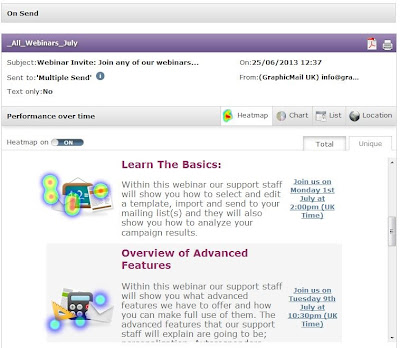 Using this new feature you can now see where people are clicking on your email, and if they aren't clicking on certain areas then you can make the necessary changes:
We hope you like it and don't forget to leave a comment below and of course join us on Facebook and Twitter to keep up to date with more tips, features and email marketing advice.
Read More
You will now see you have access to Heat Maps which will show you where your subscribers are clicking on your email. The heat map will display blue, green and red circles to indicate how many people are clicking on specific areas. If you see a red circle as shown below then you will know most people have clicked on that particular area.

- Are the buttons too small?
- Which links are being used the most?
- Should you include more images or buttons?
We hope you like it and don't forget to leave a comment below and of course join us on Facebook and Twitter to keep up to date with more tips, features and email marketing advice.
Wednesday, 19 June 2013
What Is The Best Time To Send?
Labels:
advanced features
,
compare results
,
data collection
,
email marketing
,
open rate
,
Reports and Statistics
,
sending
,
tips
The best time to send will differ depending on your subscribers. What works for someone else may not work for you so it is best to review your own Reports & Statistics and see what actually works for you.
We provide numerous reports within your account to help you analyse your campaigns so you can better your next one so don’t ignore it. Use the information within your Reports & Statistics to your advantage and see how it can help to increase your open and click-through rates.
Firstly within the Reports & Statistics section we provide you with an overall view of your send so you can immediately see delivered, opens, clicks, not opened, bounced.

An overview of your email is great as you can immediately see how well your campaign has done. However to discover the best time to send you will need to do some more digging. You can easily view more specific details such as just the opens by interacting with the graph and just leaving “Opens” highlighted:

This section lets you know when most subscribers opened your email so you will already have a good indication of when to send.
Although this section helps, we also provide more detailed information when you start to actually review the specific “opened” statistics. The "opened" statistics provides you with more detailed information about what email client was used but more importantly what date and time your email has been opened.
As shown below once you view the opened statistics you can then see when your subscribers are actually taking action with your emails. This is the data that you need to pay attention to as it will tell you exactly when your subscribers are opening your email.
 Not only can you interactive with the Statistics available but you can also easily export any of the information presented above. By exporting it you can view it within an excel spread sheet which can help you to compare your results to see when the majority of subscribers are taking action. Once you know when most of your subscribers are opening your emails you can use that information to send emails at that particular time.
Now you are armed with this information, use it to see how it can increase your own open and click-through rates. If you see any big improvements we would love to know about it, just drop us a comment below!
Read More
We provide numerous reports within your account to help you analyse your campaigns so you can better your next one so don’t ignore it. Use the information within your Reports & Statistics to your advantage and see how it can help to increase your open and click-through rates.
Firstly within the Reports & Statistics section we provide you with an overall view of your send so you can immediately see delivered, opens, clicks, not opened, bounced.

An overview of your email is great as you can immediately see how well your campaign has done. However to discover the best time to send you will need to do some more digging. You can easily view more specific details such as just the opens by interacting with the graph and just leaving “Opens” highlighted:

This section lets you know when most subscribers opened your email so you will already have a good indication of when to send.
Although this section helps, we also provide more detailed information when you start to actually review the specific “opened” statistics. The "opened" statistics provides you with more detailed information about what email client was used but more importantly what date and time your email has been opened.
As shown below once you view the opened statistics you can then see when your subscribers are actually taking action with your emails. This is the data that you need to pay attention to as it will tell you exactly when your subscribers are opening your email.
Now you are armed with this information, use it to see how it can increase your own open and click-through rates. If you see any big improvements we would love to know about it, just drop us a comment below!
Subscribe to:
Posts
(
Atom
)
Follow Us


Popular Posts
-
 Have you noticed our new dashboard yet? If not then just log into your account and click on the " Home " tab. Alternatively if you...
-
 Take an exclusive peek at our New Mobile Editor which you will have access to very shortly! Soon you will be able to create a free mobile ...
-
GraphicMail is currently in the last phase of completing the integration of a new email newsletter editor that will let you easily create ...