Get
started creating stunning email
newsletters with GraphicMail. We have tons of pre-designed email templates to
choose from, and you can upload your own layout to design a custom look. We
make it easy to add personalization to your email messages with merge tags.
Creating a
newsletter is as easy as 1-2-3!
1. Create a
newsletter
2. Add
content & edit
3. Prep for
sending
Step 1:
Create a fresh newsletter
After
logging into your account, start by clicking Newsletters in the left navigation
menu and then selecting one of the three Create options:
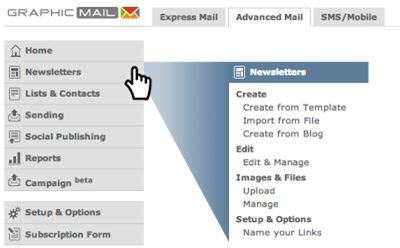
Newsletters > Create from Template
Whatever the
occasion, we have a template for it! Check out our template categories for
stylish ready-made designs to launch your campaign. Just give your template a
name to get started.
Newsletters
> Import from File
Upload your
own design to our newsletter and begin adding content right away, or you can
edit your design further within the editor. Upload your word, text, or HTML
files, or link to the appropriate URL.
Newsletters
> Upload from Blog
Click
‘create new’ to fetch the design style from a blog or any RSS feed and
replicate the same style in a ready-to-send email template. Just input your
feed's URL and our design editor will do the rest.
Step 2: Add
content to your newsletter
Give the
newsletter editor a spin by adding content to your message or editing various
design aspects. For step by step tips on how to edit and personalise
newsletters, please refer to the tutorial video guides in the help center or
consider taking part in one of our free How-to-get-started webinars.
GM TIP #1:
Keep your designs and layout simple. They are easier to send, open, and read
for your subscribers.
GM TIP #2:
Maintain a healthy balance of text versus images in your newsletters. Keep in
mind though that your images might not always render perfectly for all email
clients, so it is important to preview your emails on popular email platforms.
Step 3: Prep
for sending
GraphicMail
offers several pre-send check tools to ensure everything is in order prior to
sending. Please visit the following introductory guides for checking your spam
score, previewing your message, and setting up A/B split tests.


