
Showing posts with label Reports and Statistics. Show all posts
Showing posts with label Reports and Statistics. Show all posts
Monday, 7 September 2015
The Ultimate Guide To Email Delivery (Series 5 of 5)
Labels:
delivery
,
email marketing
,
esp
,
Reports and Statistics
Within this last section of our Ultimate Guide To Email Marketing, we will cover all aspects of Email Delivery and explain what data you should use to help better your next campaign.
If you were to send your emails in bulk from your personal Gmail, Outlook or Yahoo accounts, then not only will it take an awfully long time but it is also likely that the emails will start to get rejected. This is because you will likely look like you are spamming, whereas if you were to send via an ESP then they would go through as expected as they have rock-solid relations with all of the major ISPs.
With an ESP you will not only receive brilliant rates of delivery, but you’ll also have a dedicated delivery team working on your behalf. This team will ensure that no matter the volume of your campaign or time of day that you are sending it it will be delivered very quickly for you. The speed of delivery will also increase allowing your campaign to be delivered within an hour or two as it will usually be sent through a pool of IP addresses via their powerful servers.
No doubt you have sent an email and received no reply due to it landing in the recipient’s spam folder. Well ESP's will have tools for you to use to help reduce the possibility of your email landing in the junk.
So how is this done?
The first method is to use a spam checker, which will give you an indication of the likelihood of your email being caught in your recipient's servers spam filters. Not only will the spam checker provide you with the result of the check, it will also tell you the steps that you need to take in order to reduce the spam score as low as physically possible. It may even be something as simple as the subject line was all in capitals, or the ratio of images to text is a little high. Once you know the cause, you can then make the necessary changes to reduce the spam score.
Email authentication is becoming more and more important and as a result ESPs offer all of their clients email authentication technologies such as SPF and DKIM to further combat spam. These are extremely simple to setup within your account as it’s usually just a case of copy and pasting a record into your website’s DNS settings. Once that has been done it and you have confirmed the records are matching, it will give the ESP more authority to send on your behalf.
Now this one is quite simple so it can easily be missed. Ask your subscribers to add your 'from email address', the one you are sending from, as a trusted sender (as a contact within their email contact list) as that will help the email to be trusted. It's best to include this request within the first point of contact with your subscribers, generally an ESP will have this information in an email header, or if not you can simply add some text into the body of the email. This can be presented within the welcome email, an automated shopping cart email or even when you have an email triggered to send after a certain action.
The depth of the statistics available to you is something that you would never have when sending through your personal email account, and these statistics are vital to ensure that your email marketing is as effective as it possibly can be.
You can even track your subscribers’ access to your website by enabling Google Analytics within your ESP, meaning you can see exactly which traffic has been driven to the website from your email marketing campaigns, which again is extremely useful information to have at hand.
So what data should I be paying attention to?
Regardless of what you've heard there is no straight forward answer to finding the best day/time to send your email campaign. This is because every list is different and you need to find out what works for your subscribers rather than anyone else. This can easily be achieved by checking your 'opened' statistics to see what time the majority of your emails were opened.
The rest of the data is up to you, you can of course follow up your hot leads (those that have taken action) or you can focus on a retention campaign to get interaction from those that appear to be on the edge of unsubscribing.
Don’t just take our word for it though, why not start a free no-obligation trial with GraphicMail and try it all out for yourself: http://graphicmail.co.uk/get-your-free-trial
Read More
Improve your delivery using an ESP
One of the main benefits of using an Email Service Provider (or ESP for short) is the consistently excellent delivery rate you can expect from any email campaign that you send out.If you were to send your emails in bulk from your personal Gmail, Outlook or Yahoo accounts, then not only will it take an awfully long time but it is also likely that the emails will start to get rejected. This is because you will likely look like you are spamming, whereas if you were to send via an ESP then they would go through as expected as they have rock-solid relations with all of the major ISPs.
With an ESP you will not only receive brilliant rates of delivery, but you’ll also have a dedicated delivery team working on your behalf. This team will ensure that no matter the volume of your campaign or time of day that you are sending it it will be delivered very quickly for you. The speed of delivery will also increase allowing your campaign to be delivered within an hour or two as it will usually be sent through a pool of IP addresses via their powerful servers.
Spam prevention techniques
Now you know the benefits of having it delivered by an ESP, the next step is to make sure that when it is delivered that it lands in the inbox, and not, the dreaded spam folder.No doubt you have sent an email and received no reply due to it landing in the recipient’s spam folder. Well ESP's will have tools for you to use to help reduce the possibility of your email landing in the junk.
So how is this done?
The first method is to use a spam checker, which will give you an indication of the likelihood of your email being caught in your recipient's servers spam filters. Not only will the spam checker provide you with the result of the check, it will also tell you the steps that you need to take in order to reduce the spam score as low as physically possible. It may even be something as simple as the subject line was all in capitals, or the ratio of images to text is a little high. Once you know the cause, you can then make the necessary changes to reduce the spam score.
Email authentication is becoming more and more important and as a result ESPs offer all of their clients email authentication technologies such as SPF and DKIM to further combat spam. These are extremely simple to setup within your account as it’s usually just a case of copy and pasting a record into your website’s DNS settings. Once that has been done it and you have confirmed the records are matching, it will give the ESP more authority to send on your behalf.
Now this one is quite simple so it can easily be missed. Ask your subscribers to add your 'from email address', the one you are sending from, as a trusted sender (as a contact within their email contact list) as that will help the email to be trusted. It's best to include this request within the first point of contact with your subscribers, generally an ESP will have this information in an email header, or if not you can simply add some text into the body of the email. This can be presented within the welcome email, an automated shopping cart email or even when you have an email triggered to send after a certain action.
Reports & Statistics
When you send out a newsletter using an ESP you will have a wealth of reports and statistics which will let you know exactly how the send has went; how many have been delivered, who has opened your emails, which links in your email have been clicked and so much more.The depth of the statistics available to you is something that you would never have when sending through your personal email account, and these statistics are vital to ensure that your email marketing is as effective as it possibly can be.
You can even track your subscribers’ access to your website by enabling Google Analytics within your ESP, meaning you can see exactly which traffic has been driven to the website from your email marketing campaigns, which again is extremely useful information to have at hand.
So what data should I be paying attention to?
Regardless of what you've heard there is no straight forward answer to finding the best day/time to send your email campaign. This is because every list is different and you need to find out what works for your subscribers rather than anyone else. This can easily be achieved by checking your 'opened' statistics to see what time the majority of your emails were opened.
The rest of the data is up to you, you can of course follow up your hot leads (those that have taken action) or you can focus on a retention campaign to get interaction from those that appear to be on the edge of unsubscribing.
What's next?
All in all, we hope we’ve demonstrated the immense benefits of sending your newsletters using an ESP rather than through your own personal email account; the deliverability will be vastly improved, you’ll have a team of professionals making sure your emails are sent in a timely manner and you’ll have access to an endless amount of statistics which will tell you exactly what has happened with your email campaign since you clicked ‘Send’.Don’t just take our word for it though, why not start a free no-obligation trial with GraphicMail and try it all out for yourself: http://graphicmail.co.uk/get-your-free-trial

Wednesday, 26 February 2014
What your subscribers want to read
Labels:
a/b testing
,
advice
,
click through rate
,
content marketing
,
email marketing
,
GraphicMail
,
open rate
,
Reports and Statistics
,
segmentation
,
subject line
,
subscribers
The best way to get the most out of your Email, Mobile and Social Marketing is to know exactly what your subscribers want to read. By doing this you will be able to provide your customers with the content they are interested in or need.
In order to achieve this you must have as much information as possible about them. You can collect this information using different strategies. Here are some ideas:
• Send out a survey. Providing your subscribers with a survey allows you to collect more specific information about them. You can then Segment your subscribers into separate lists so you can give them the information they want to read.
• Analyse your subscriber’s behaviour. You can create this analysis by accessing our Report & Statistics feature within your GraphicMail account as it will provide you with a fully detailed report of your Open & Click through rate, social and more.
• Request feedback from your recipients by adding buttons into your email. For instance you could ask if the email was useful or if they would like to receive further information about a different product.
• Use our A/B Testing tool provided in your account. This tool can help you to test different versions of your email at once and see which has the best response within your subscribers. You can test this on different types of content you have in your email or the different Subject Line you use.
When following these ideas you will then be able to grow engagement and loyalty with all of your customers which in retrun will help the growth, sales and development of your brands reputation.
Read More
In order to achieve this you must have as much information as possible about them. You can collect this information using different strategies. Here are some ideas:
• Send out a survey. Providing your subscribers with a survey allows you to collect more specific information about them. You can then Segment your subscribers into separate lists so you can give them the information they want to read.
• Analyse your subscriber’s behaviour. You can create this analysis by accessing our Report & Statistics feature within your GraphicMail account as it will provide you with a fully detailed report of your Open & Click through rate, social and more.
• Request feedback from your recipients by adding buttons into your email. For instance you could ask if the email was useful or if they would like to receive further information about a different product.
• Use our A/B Testing tool provided in your account. This tool can help you to test different versions of your email at once and see which has the best response within your subscribers. You can test this on different types of content you have in your email or the different Subject Line you use.
When following these ideas you will then be able to grow engagement and loyalty with all of your customers which in retrun will help the growth, sales and development of your brands reputation.
Thursday, 13 February 2014
Email Marketing for Large Companies
Labels:
advice
,
business
,
email marketing
,
exclusive
,
interactive
,
large companies
,
measurable
,
personalised
,
Reports and Statistics
,
segmentation
Do you own a small business? An online commerce? A large company?
Email Marketing is one of the main marketing tools to be used in any company and is common practise within large companies.
Last week we gave you some tips about why Email Marketing should be included in small businesses marketing plan. So this week we're going to give you some reasons why developing Email Marketing is also a must for large companies.

1. Your clients will instantly be able to receive the information you provide them with.
2. You can personalise your emails so your recipients receive exclusive and highly personal communications. Using personalisation will help you be seen as a caring and dedicated company.
3. You can focus your newsletters by segmenting your mailing list in order to send to targeted audiences increasing your sales opportunity. Companies that use our service are easily able to do this by creating segmentated list.
4. As Email Marketing is a measurable practise it allows you to follow up your marketing strategies and results using our Reports and Statistic tool. This will help you to track your customer’s behaviour with your emails and it will provide you with information about your sales and user engagement.
5. Email marketing is an interactive and fast response platform which helps you to quickly reach a wider audience and it can easily be done with a small budget.
As you can see, Email Marketing is for everyone! It is a very versatile tool that can help you, no matter the type or size of your business.
Wednesday, 12 February 2014
Track your progress with our Reports & Statistic
Labels:
a/b testing
,
advanced features
,
campaigns
,
email marketing
,
Reports and Statistics
,
segmentation
Report & Statistics allow you to track the progress of each email campaign you send and allow you to compare the success of it against previous sends.
Our Reports and Statistics will allow you to check what is
most popular with your subscribers and giving you an indication of what each
individual subscriber is interested in. You can get all this useful information
and more when using GraphicMail's Reports & Statistics feature.

The Reports & Statistics feature within your GraphicMail
account will provide you with:
Bounced Statistics:
- Our statistics will show you which email addresses have been noted as Hard and Soft Bounced. They will also go into further detail to explain the type of Hard Bounce received such as Spam Trapped, User Unknown, Domain Unknown or Other. These statistics gives you the opportunity to keep your list as clean as possible by removing the invalid and bad email addresses.
Not Opened Statistics:
- These statistics allow you to see which emails your subscribers have not opened, allowing you to do further tests with other Advanced Features available such as our “A/B Test” or “Segment” features.
Opened Statistics:
- Opened statistics allow you to see who has took interest in your email, providing you with the knowledge of what they are interested in.
Unsubscribed Statistics:
- You will be able to view which of your subscribers have unsubscribed from your mailing list. Any email address that unsubscribes will automatically be added into your account blocklist to prevent you from sending to them again.
Clicked Statistics:
- Our clicked statistics allow you to see which links were most popular within your email and gives you an indication into what your individual subscribers are interested in. We also provide you with a Heatmaps in this section so you don’t just need to view numbers to receive this information as it is visually displayed within our heatmaps.
Shared Statistics:
- Shared statistics allows you to see if any of your subscribers have shared your email to their social media networks or if they have forwarded it to a friend.
As you can see, Reports & Statistics gives you the
advantage to see what is and what is not working with your email campaigns allowing you to get the full potential from them. Think this
is a good idea? Don’t miss out and Get the most out of Email Marketing with
us!
Monday, 9 September 2013
Improvements We Have Made For You...
Labels:
dashboard
,
data collection
,
email template
,
free templates
,
mobile editor
,
new features
,
news
,
Reports and Statistics
,
social browser widget
,
social subscribe
We continually improve our system by providing you with more features, improving our interface and more. By doing this we make sure our GraphicMail customers have the best Email Marketing tools at their finger-tips.
Lately we have improved our system by including:
They are allocated into categories to help you locate the type of email template you would like to use.
Here is an example of some email templates you can use:
 We would love to get your feedback about our recent updates so please join us on Facebook and Twitter and leave us a comment.
Read More
Lately we have improved our system by including:
- New Reports & Statistics - We included a new Reports & Statistics section which is more interactive, informative and provides you with more details to help you understand your subscribers.
- New Import Option - OneSaas allows you to connect to more than 50 apps, meaning you can import contacts from CMS, CRM, eventing and financial apps and more.
- New Mobile Editor - Create free mobile sites and you can now even include a link into the text message for free.
- New Dashboard - This provides you with key account information and allows you to post directly to Facebook and Twitter.
- New Social Subscribe - Allow users to sign up to your mailing list via their Social Network accounts.
- List Clean Up tool - Our List Clean Up tool can stop complaints, get rid of bounces and improve delivery.
- New Social Browser Widget - Comment about your newsletter, signup, change the language and more.
- Heat Maps - We have recently added new Heat Maps to our Reports & Statistics section which means you can see where people are clicking in your email.
They are allocated into categories to help you locate the type of email template you would like to use.
Here is an example of some email templates you can use:
Thursday, 29 August 2013
Heat Maps Are Now Available!
Labels:
advanced features
,
heat maps
,
new features
,
Reports and Statistics
,
tracking
We are constantly updating our service to try and make sure you have the best features at your finger-tips. Our Reports & Statistics section has made a massive change over the last year as we have introduced interactive charts, extensive data to be exported, geo-location and now we have something new to introduce.
You will now see you have access to Heat Maps which will show you where your subscribers are clicking on your email. The heat map will display blue, green and red circles to indicate how many people are clicking on specific areas. If you see a red circle as shown below then you will know most people have clicked on that particular area.
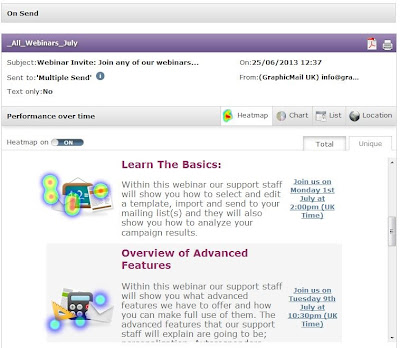 Using this new feature you can now see where people are clicking on your email, and if they aren't clicking on certain areas then you can make the necessary changes:
We hope you like it and don't forget to leave a comment below and of course join us on Facebook and Twitter to keep up to date with more tips, features and email marketing advice.
Read More
You will now see you have access to Heat Maps which will show you where your subscribers are clicking on your email. The heat map will display blue, green and red circles to indicate how many people are clicking on specific areas. If you see a red circle as shown below then you will know most people have clicked on that particular area.

- Are the buttons too small?
- Which links are being used the most?
- Should you include more images or buttons?
We hope you like it and don't forget to leave a comment below and of course join us on Facebook and Twitter to keep up to date with more tips, features and email marketing advice.
Wednesday, 19 June 2013
What Is The Best Time To Send?
Labels:
advanced features
,
compare results
,
data collection
,
email marketing
,
open rate
,
Reports and Statistics
,
sending
,
tips
The best time to send will differ depending on your subscribers. What works for someone else may not work for you so it is best to review your own Reports & Statistics and see what actually works for you.
We provide numerous reports within your account to help you analyse your campaigns so you can better your next one so don’t ignore it. Use the information within your Reports & Statistics to your advantage and see how it can help to increase your open and click-through rates.
Firstly within the Reports & Statistics section we provide you with an overall view of your send so you can immediately see delivered, opens, clicks, not opened, bounced.

An overview of your email is great as you can immediately see how well your campaign has done. However to discover the best time to send you will need to do some more digging. You can easily view more specific details such as just the opens by interacting with the graph and just leaving “Opens” highlighted:

This section lets you know when most subscribers opened your email so you will already have a good indication of when to send.
Although this section helps, we also provide more detailed information when you start to actually review the specific “opened” statistics. The "opened" statistics provides you with more detailed information about what email client was used but more importantly what date and time your email has been opened.
As shown below once you view the opened statistics you can then see when your subscribers are actually taking action with your emails. This is the data that you need to pay attention to as it will tell you exactly when your subscribers are opening your email.
 Not only can you interactive with the Statistics available but you can also easily export any of the information presented above. By exporting it you can view it within an excel spread sheet which can help you to compare your results to see when the majority of subscribers are taking action. Once you know when most of your subscribers are opening your emails you can use that information to send emails at that particular time.
Now you are armed with this information, use it to see how it can increase your own open and click-through rates. If you see any big improvements we would love to know about it, just drop us a comment below!
Read More
We provide numerous reports within your account to help you analyse your campaigns so you can better your next one so don’t ignore it. Use the information within your Reports & Statistics to your advantage and see how it can help to increase your open and click-through rates.
Firstly within the Reports & Statistics section we provide you with an overall view of your send so you can immediately see delivered, opens, clicks, not opened, bounced.

An overview of your email is great as you can immediately see how well your campaign has done. However to discover the best time to send you will need to do some more digging. You can easily view more specific details such as just the opens by interacting with the graph and just leaving “Opens” highlighted:

This section lets you know when most subscribers opened your email so you will already have a good indication of when to send.
Although this section helps, we also provide more detailed information when you start to actually review the specific “opened” statistics. The "opened" statistics provides you with more detailed information about what email client was used but more importantly what date and time your email has been opened.
As shown below once you view the opened statistics you can then see when your subscribers are actually taking action with your emails. This is the data that you need to pay attention to as it will tell you exactly when your subscribers are opening your email.
Now you are armed with this information, use it to see how it can increase your own open and click-through rates. If you see any big improvements we would love to know about it, just drop us a comment below!
Thursday, 11 April 2013
Are You Going Mobile Yet?
Labels:
Email Design
,
email marketing
,
Email Tips
,
Inbox Preview
,
mobile design
,
Reports and Statistics
,
Smart Elements
,
White Paper
It can be daunting to think your email now needs to be compatible with the huge amount of devices and email clients out there. However as more and more people are viewing emails on the go it makes the rewards for making those changes very apparent.
According to econsultancy “A survey from Nielsen found that 68% of UK consumers had used their mobiles to check emails in the previous 30 days”.
Do you know how many of your subscribers are viewing your emails on their mobile?
If not then what are you waiting for? You can find out how many of them are viewing your email on devices by clicking on Reports & Statistics >> View by Send, "Opened" and then click on “List”. That will then display a list view of all the subscribers that opened your email and explain what email client/device they were using.
If you have a high percentage of subscribers using mobiles then it may be time to make some changes to your email. You have multiple options to consider before you spend lots of hours and money on creating the perfect mobile experience.
The first step is to make sure your email works correctly on desktop email clients, once you have done that you can then start to make small changes to make it more compatible for mobiles.
 So once your desktop version works as it should in most email clients, you can then introduce little changes to your design. As people viewing your email on their mobile will often be on the move there are some design points that you need to consider.
Design
We offer different templates which are suitable for mobile devices so take a look around as we have over 400 free templates for you to choose from. However if you want to adapt your current template with simple changes then here are some things you can do:
Testing
Don't forget to test, test and test again! If your email looks great in one email client it doesn't mean it will in the others so it is best to check in all and of course include mobile devices.
We have an inbox preview tool which displays over 14 different email clients ranging from applemail, gmail to outlook and more importantly iPhones. If you have a paying account then you can create as many tests as you would like completely free of charge, so don’t wait around, see how compatible your email is.
Once you have made the above changes to your standard email it should now be easier to read on mobiles making it a more enjoyable experience for your subscribers. With those changes in place, remember to check your results within the Reports & Statistics to see how your subscribers reacted to the changes in your email design.
 Is the above not enough?
If you would like more design tips & coding advice to help you create your email then just click here to download our "Creating An Email Campaign" White Paper. All we ask is that you Like our Facebook Fan page, by doing that you will gain access to our “Creating An Email Campaign” and 3 other new White Papers.
Don’t forget to leave a comment below if you have any tips of your own that you would like to share.
Read More
Do you know how many of your subscribers are viewing your emails on their mobile?
If not then what are you waiting for? You can find out how many of them are viewing your email on devices by clicking on Reports & Statistics >> View by Send, "Opened" and then click on “List”. That will then display a list view of all the subscribers that opened your email and explain what email client/device they were using.
If you have a high percentage of subscribers using mobiles then it may be time to make some changes to your email. You have multiple options to consider before you spend lots of hours and money on creating the perfect mobile experience.
The first step is to make sure your email works correctly on desktop email clients, once you have done that you can then start to make small changes to make it more compatible for mobiles.
Design
We offer different templates which are suitable for mobile devices so take a look around as we have over 400 free templates for you to choose from. However if you want to adapt your current template with simple changes then here are some things you can do:
- Single Column Layout - Keep the design to one column as mobile devices will be able to scale it to fit the screen.
- Headings - Provide clear headings which stand out so the recipients can scan read it to understand the main points of your email within seconds.
- Call-To-Actions - It is best to use buttons for these as they will be a lot easier to click when using devices. View the SmartElements in our latest editor as we provide hundreds for you to choose from.
- Limit Content - As mobile devices have small screens you need to limit the text shown. Reduce the amount you have on display and include "read more" links. By doing this you will reduce the clutter and increase your understanding of what your subscribers are interested in as you can view the clicked statistics later.
Testing
Don't forget to test, test and test again! If your email looks great in one email client it doesn't mean it will in the others so it is best to check in all and of course include mobile devices.
We have an inbox preview tool which displays over 14 different email clients ranging from applemail, gmail to outlook and more importantly iPhones. If you have a paying account then you can create as many tests as you would like completely free of charge, so don’t wait around, see how compatible your email is.
Once you have made the above changes to your standard email it should now be easier to read on mobiles making it a more enjoyable experience for your subscribers. With those changes in place, remember to check your results within the Reports & Statistics to see how your subscribers reacted to the changes in your email design.
If you would like more design tips & coding advice to help you create your email then just click here to download our "Creating An Email Campaign" White Paper. All we ask is that you Like our Facebook Fan page, by doing that you will gain access to our “Creating An Email Campaign” and 3 other new White Papers.
Don’t forget to leave a comment below if you have any tips of your own that you would like to share.
Thursday, 4 April 2013
View reports to track your campaign
Labels:
data collection
,
Reports and Statistics
,
segmentation
,
tips
Once you have created your newsletter and sent your message, view reports on open rates, click through rates, and share rates from your campaign.
Our reporting tools make it easy to decipher key performance indicators in your campaign, and then use these insights to improve on future sends. Get started by clicking 'Reports' and 'On sends'.

The reports dashboard shows you all the most important categories that help you gauge the success of your send. Here you can see how many of your mails were delivered, how many of them bounced, how many were opened, and how your subscribers clicked through them. You can even compare your results to your industry's benchmarks for email marketing campaigns.
GraphicMail’s reporting tools even tell you:
• Where in the world people open your mail
• When they read and engage with your message
• What operating system and browser they used
This information is perfect for further segmenting of your subscribers and building clearer demographic stats for your future marketing communications.
For step by step help on how to read your reports, check out this video from our GraphicMail help center.
Read More
Our reporting tools make it easy to decipher key performance indicators in your campaign, and then use these insights to improve on future sends. Get started by clicking 'Reports' and 'On sends'.
The reports dashboard shows you all the most important categories that help you gauge the success of your send. Here you can see how many of your mails were delivered, how many of them bounced, how many were opened, and how your subscribers clicked through them. You can even compare your results to your industry's benchmarks for email marketing campaigns.
GraphicMail’s reporting tools even tell you:
• Where in the world people open your mail
• When they read and engage with your message
• What operating system and browser they used
This information is perfect for further segmenting of your subscribers and building clearer demographic stats for your future marketing communications.
For step by step help on how to read your reports, check out this video from our GraphicMail help center.
Tuesday, 2 April 2013
Becoming An Email Marketer
Labels:
advanced features
,
Best Practice
,
email marketing
,
Email Tips
,
free templates
,
Reports and Statistics
,
subscription form
,
White Paper
Email marketing can seem like a big task to undertake but by using an Email Service Provider such as ourselves we take a load off your shoulders. We have outlined the basics that you should be aware of when you first start:
To download it simply click here or click on the image below:

Read More
- Use a Template – We provide over 400 templates which you can use by adding your own text and images into them. The reason we suggest you use a template is because all email clients and devices have their own way to interpret emails. By using a template you can be confident that it will display correctly regardless of the email client or device your subscribers are using.
- Clear Calls To Action – Display clear calls-to-action within your emails, if you want your subscribers to click on a link/image or share your email then make it obvious to them.
- Advanced Features - We provide numerous advanced features which can make email marketing a breeze. If you are not fully aware of them then join our live webinars so you know what features you should be using.
- Provide An Option To Subscribe – It's important to give all recipients an option to sign up to receive your emails as your subscribers might share your email with friends or on social network sites. We provide a subscription form which can be added onto your website or Facebook, alternatively you can add a subscribe option within the footer of the emails you are sending out.
- Use Reports & Statistics – We provide very detailed reports & statistics which allow you to analyse your campaigns. Within the reports & statistics you can see when your subscribers are taking action within your emails to determine the best time to send. You can also create new mailing lists of those that are taking action with your emails such as if they open, click a link or even share your email.
To download it simply click here or click on the image below:
Monday, 25 March 2013
Free Easter Templates
Labels:
Best Practice
,
Easter
,
Email Design
,
Embellishments
,
Inbox Preview
,
Reports and Statistics
,
segmentation
,
Smart Elements
We know holidays can be a hectic time so we have made it as easy as possible for you to create your Easter campaign. We have 6 free templates for you to choose from as shown below:
 Choosing a template is a great start but to help you further we have listed 5 easy
steps for you to follow to make sure you are able to achieve what you want from your
campaign:
Read More
- Who is your target audience? Is it specific, if so then use the data you have from your subscribers to segment your mailing list so you only send to your targeted audience, this can be done using segmentation.
- What is the aim for your email? Is it to inform the users of a new feature, product or a special offer? Whatever your aim is make sure it is clearly visible within the content. It is best to place the most important content at the top of your email as that will be the first thing your recipients see.
- Make good use of images - Images are a great way to get your point across in an attractive manner. We offer hundreds of free images within the Smart Elements and Embellishment section so why not check them out.
- Test your email - Testing your email cannot be understated. The email you are sending out is a representation of your company so if it doesn't look very good in a particular email client then a recipient using that email client will not think very highly of your company. Don't worry though as we have the cure, use our Inbox Preview tool as that will show you exactly how your email will look in over 14 different email clients and best of all it is free to use for all paying accounts.
- Sending at the right time - When sending your email it is important to make sure it isn't going to land in the heap of other emails your recipients may have. To prevent that from happening, check your Reports & Statistics for previous sends to see what time your recipients take action within them as that will likely be the best time to send.
Friday, 8 February 2013
The Power of Segmentation
Labels:
advanced features
,
autoresponders
,
data collection
,
Email Design
,
Email Tips
,
mailing lists
,
Reports and Statistics
,
segmentation
,
tips
Segmenting your mailing lists cannot be overlooked as it has the ability to massively improve your email marketing campaigns. By using segmentation, you will be able to make sure the emails you are sending are being sent to your ideal target audience.
If you are sending one generic email to the bulk of your subscribers then some, will no doubt feel that the emails they are receiving are no longer of use to them, which could result in them unsubscribing. Wouldn’t it be better to know what your subscribers are really interested in and what they want to get from your emails? Wouldn’t it be great if the emails that you are sending are of those that your subscribers look forward to read?
Subscriber knowledge is a great thing to have, especially for your campaigns as it will allow you to get a better insight into what your subscribers are interested in. That way you can target your emails directly to the segments/groups of your mailing list that are interested in the same thing. If your subscribers are receiving emails that are relevant to them then you have a greater chance of them taking action on the email, which may be; opening, forwarding the email or clicking on a link.
The question that I’m sure you are wondering is how can you get this information from your subscribers?
Tips on how to gather this information:
Tips on how to use the information gathered:
Read More
If you are sending one generic email to the bulk of your subscribers then some, will no doubt feel that the emails they are receiving are no longer of use to them, which could result in them unsubscribing. Wouldn’t it be better to know what your subscribers are really interested in and what they want to get from your emails? Wouldn’t it be great if the emails that you are sending are of those that your subscribers look forward to read?
Subscriber knowledge is a great thing to have, especially for your campaigns as it will allow you to get a better insight into what your subscribers are interested in. That way you can target your emails directly to the segments/groups of your mailing list that are interested in the same thing. If your subscribers are receiving emails that are relevant to them then you have a greater chance of them taking action on the email, which may be; opening, forwarding the email or clicking on a link.
The question that I’m sure you are wondering is how can you get this information from your subscribers?
Tips on how to gather this information:
- Amend Subscription Form - Let’s start at the beginning, why not present some extra mailing lists on your subscription form which will allow people to subscribe to a particular type of newsletters. Your account comes with 20 free mailing lists so why not use them? You could also create new fields to be displayed on your subscription via the dataset, which would allow new subscribers to give more detailed information to you. The tricky part of adding more textboxes onto your subscription form is that it can affect the users from actually subscribing as they may feel that the time taken to subscribe is not worth it.
- Autoresponders - Another similar way to get additional information is to have a simple subscription form which will allow the user to add their forename, surname and email address. Once they have subscribed you could then have a subscribe trigger set up which would automatically send a newsletter to the user welcoming them to your campaign. With the welcome newsletter you could have a form to allow them to give you more detailed information; of course you must give them a reason to fill in more details such as an offer or a chance to win a prize.
- Use Forms - Why not include your current subscribers and ask them to fill in more details via a newsletter with a form in it. Of course as suggested above, the newsletter will need to include an incentive for the user to fill in more details such as the chance to win a prize.
Tips on how to use the information gathered:
- Segment Your List - Segmentation will allow you to use the information gathered from your subscribers to create queries or add limits to each segment to match a specific profile. Such as only include men who are between the ages of 18-25 living in Northumberland. This way your target audience is no longer general it will be limited to a specific section of people within your mailing lists. You can then send targeted emails with specific offers or deals to that segmented list.
- Personalise your newsletters - You can add personalisation to the emails you are sending to your subscribers. Immediately when the user starts to read the newsletter it will help to get them engaged as you can refer to their first name or location. Not only can you personalise the email but you can also add personalisation into the subject line that you are sending out. The first thing your recipient will see of your email will be the subject line so by adding their name into it you will grab their attention.
- Make good use of your Reports & Statistics - It is also important to keep track of the reports and statistics regarding your sends, as these will explain what your users are doing when they receive your newsletters. If you find that your open rate is dropping then it may be time to try something new such as using a different layout or subject line to send to those people that are no longer opening your emails. You can test new layouts or subject lines using the A/B testing within your account. Alternatively you can also create a new mailing list of the subscribers that are not taking any action with your newsletters. Those people have not unsubscribed, so now is your chance to keep them away from the unsubscribe button.
Tuesday, 22 May 2012
New Reports and Statistics Live On Thursday
You will be amazed with some of the new data you will be able to see from your campaigns.
Take
a quick look at some sections from the new interface you will have:
New Look: You will now instantly see detailed statistics for your last 3 sends, you will also see a graph of your most recent send which will now make it even easier for you to read your statistics. The charts are interactive so you will have the option to display and hide sections so you can focus on certain sections.

New Geo-location:
You can now see exactly where your recipients are located when they open, click and read your emails.
The countries highlighted on this page are done so to let you know where your recipients are located, you can also hover of the countries on the map to see more details of how many recipients are located there. You can use this information for segmentation so you can better target your audience.

Compare Against Your
Industry: You can now check how well you are doing compared to the benchmarks of other GraphicMail senders within the same industry. Are your sends resulting in more opens or clicks than others competitors or do you need to try harder?

View Recipient Activity: You can now view detailed statistics in easy to read format to immediately see how active your recipients are with the emails you have been sending them. This allows you to easily see what emails your subscribers are interested in so you can use that information to better your future campaigns.
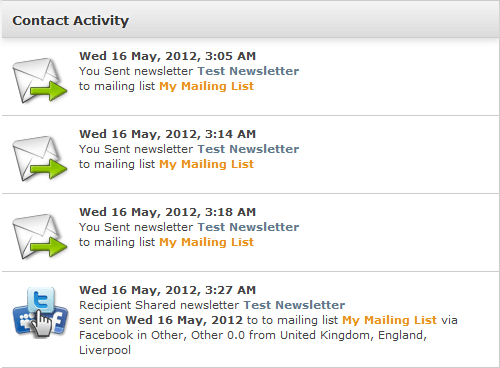
The new Reports & Statistics will be
going live on Thursday 24th May so if you would like to view our
manual so you can be ready for this change then click
here.
Let us know what you think of the new Statistics by commenting on this blog.
Subscribe to:
Posts
(
Atom
)
Follow Us


Popular Posts
-
 Have you noticed our new dashboard yet? If not then just log into your account and click on the " Home " tab. Alternatively if you...
-
 Take an exclusive peek at our New Mobile Editor which you will have access to very shortly! Soon you will be able to create a free mobile ...
-
GraphicMail is currently in the last phase of completing the integration of a new email newsletter editor that will let you easily create ...